Solving How to Allow Members to One Active Pricing Plan | Wix Pricing Plans App

Many Wix users create membership sites with multiple pricing plans to offer their visitors different levels of access and benefits. While the Wix Pricing Plans app makes it easy to set up subscriptions, some site owners prefer to ensure members have just one active plan at a time for a cleaner member experience. This approach helps maintain simple billing, reduces confusion, and creates a more streamlined membership structure.
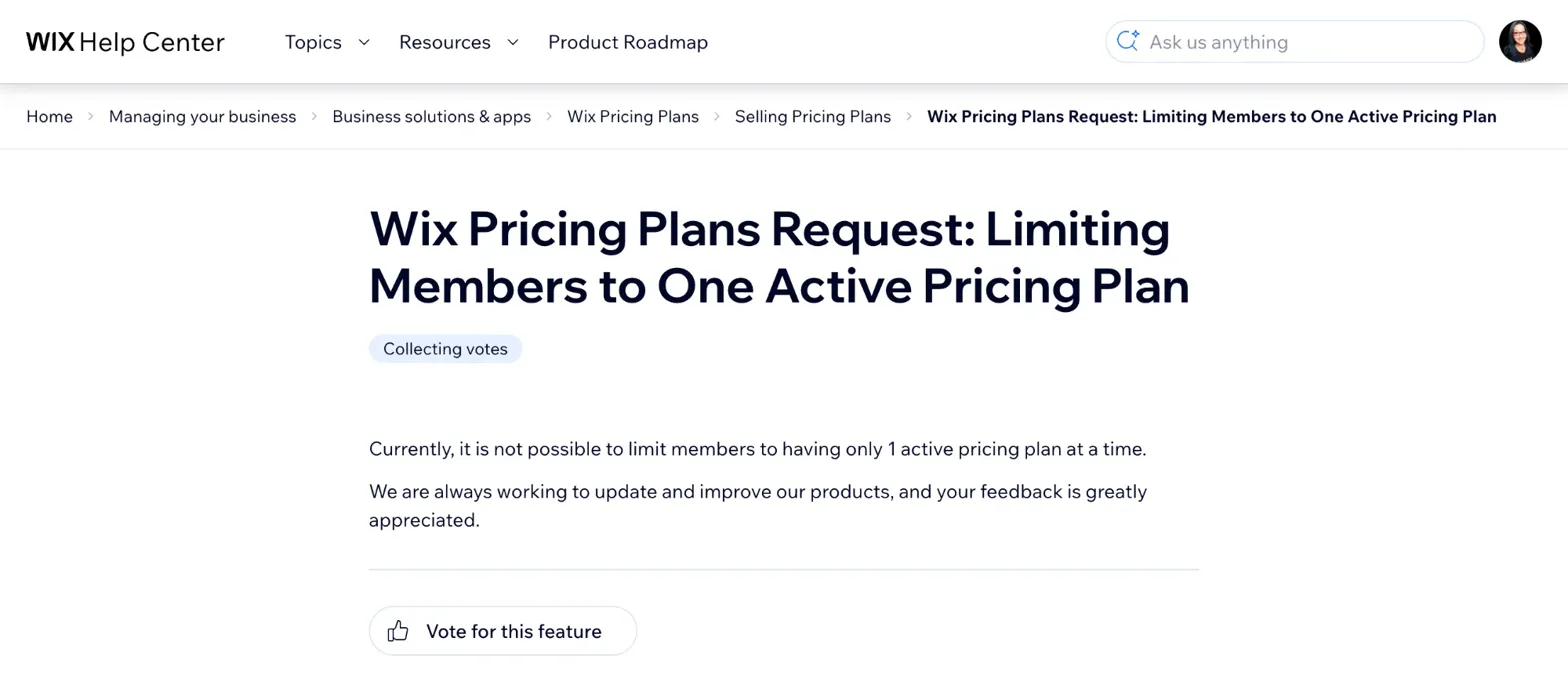
The Wix Pricing Plans app includes a helpful "Limit 1 purchase per person" toggle that prevents duplicate purchases of individual plans. This means if you have Plan A, B and C, the person will be able to purchase 1 of each of those plans. So, if you'd like to take it a step further and ensure members can only have one active plan across all your pricing options, a simple code solution can handle this beautifully.
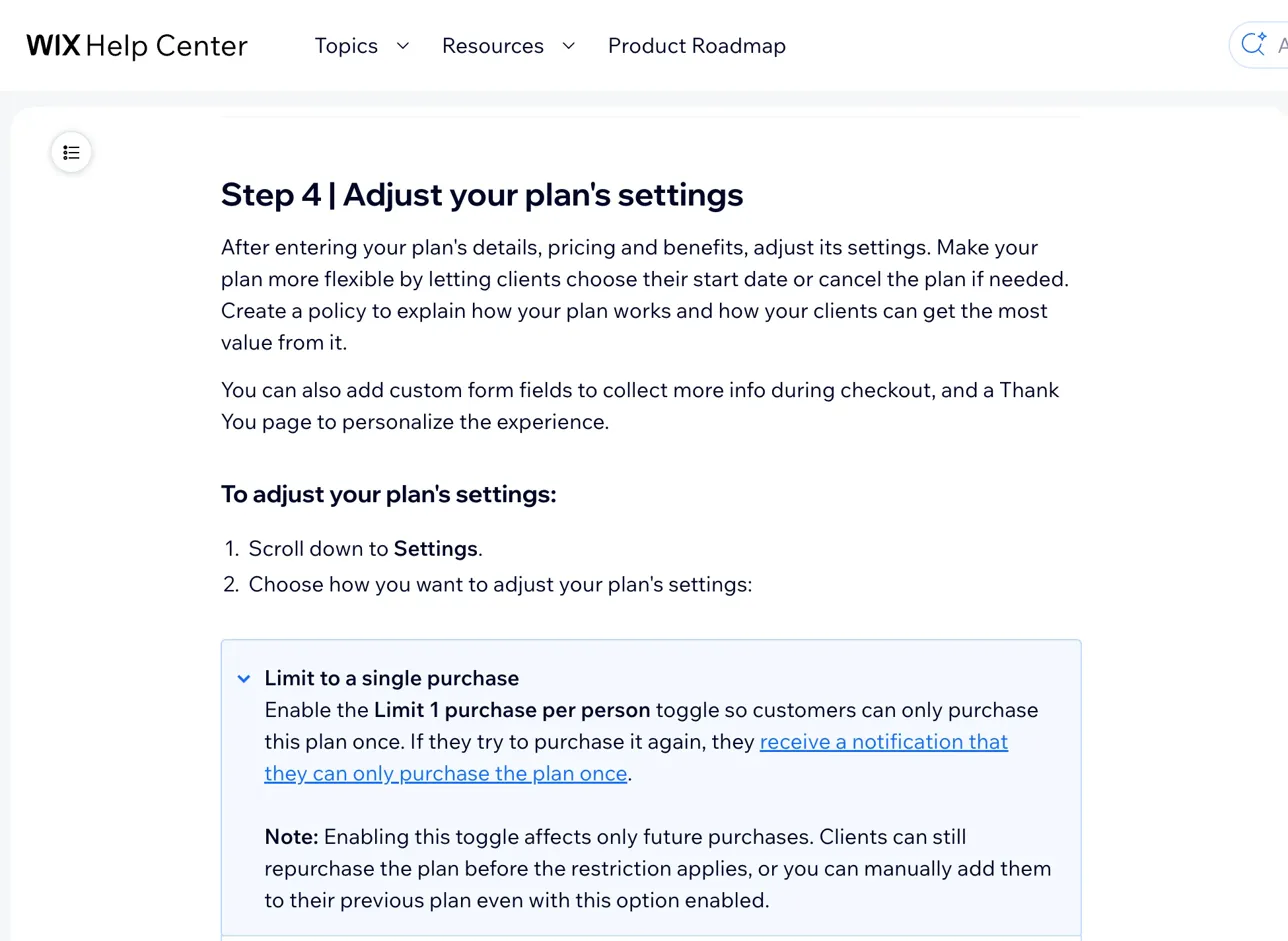
This coding approach automatically checks if a member already has an active subscription when they visit your pricing page. If they do, it smoothly redirects them to their member area where they can manage their existing plan. If they don't have an active plan, the normal purchase flow continues seamlessly.
The following code solution enhances your member experience by creating a clean, organized subscription system that works perfectly with your existing Wix Pricing Plans setup.
Follow Along #1
Set up your redirect page
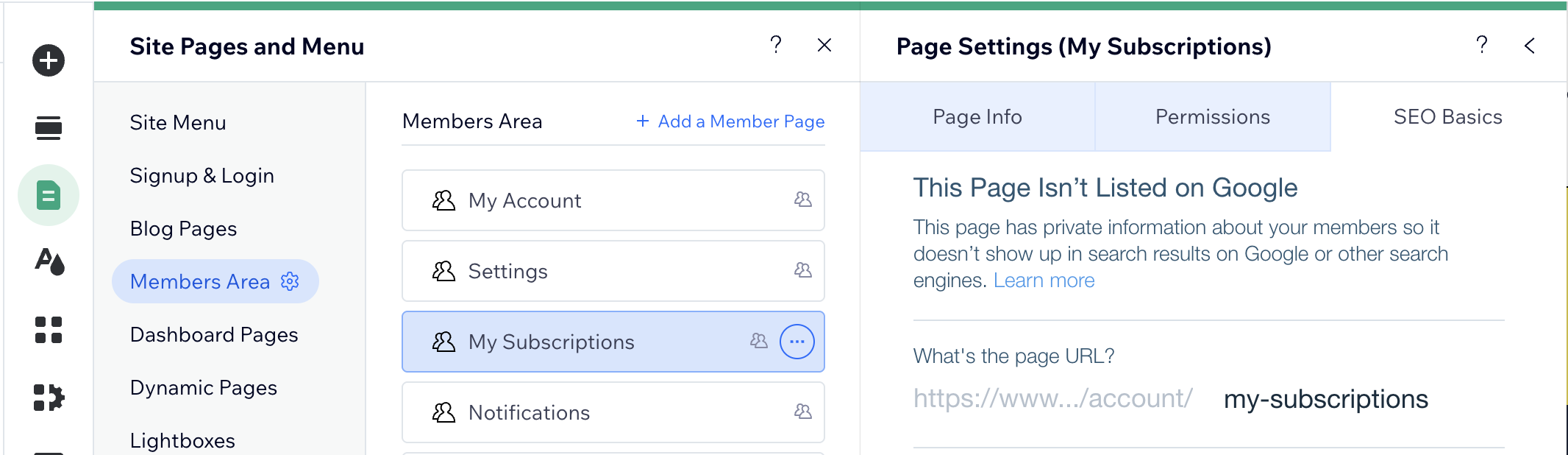
First, identify where you want to send members who already have active plans. This could be your member area, account dashboard, or subscription management page. Make note of this page URL since you'll reference it in the code. Our sample uses the default Wix Members Area Subscriptions page. We recommend using this page because it already includes all the subscription management tools your members need.
Follow Along #2
Identify the main Wix Pricing Plans app page
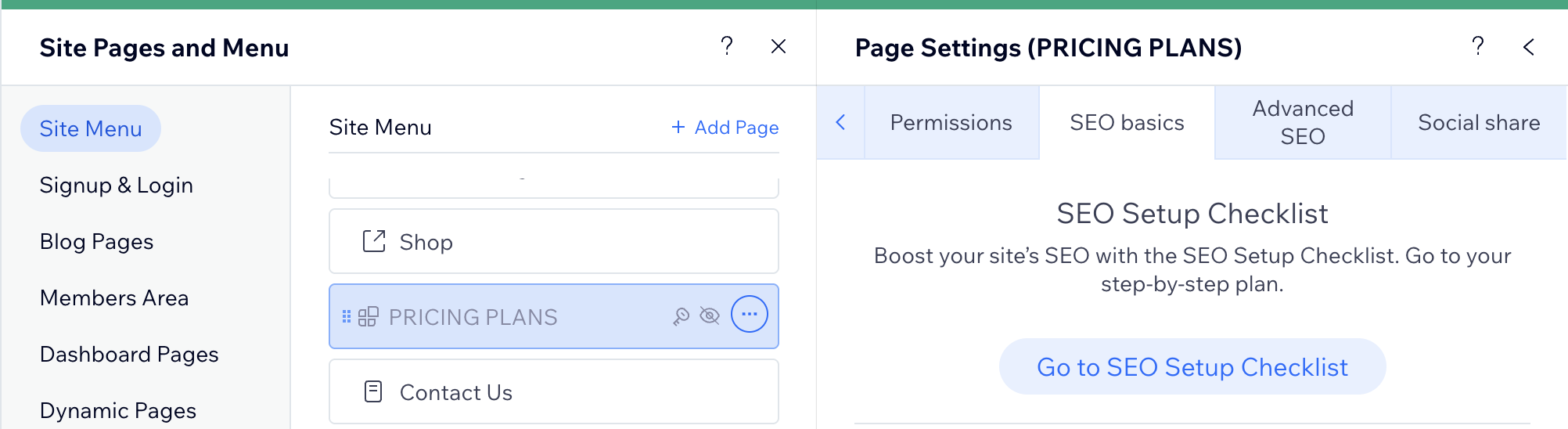
The code we will be using needs to be added to your site must be added to the main Wix Pricing Plans app page that handles the checkout process. Do not add this code to other pages where you manually added the Wix Pricing Plan widgets because it will create a poor navigation experience for your members. If you do not know which is the main Wix Pricing Plans app page follow the following tips:
- Open the site editor
- Click "Preview Site"
- Visit any page with your payment plan options list / grid
- Click on any plan as if you were going to select it to check out
- Allow the checkout window to open
- Click "Back" or "Cancel" so that the checkout window closes
- Exit "Preview Mode" and the page being displayed is the main Wix Pricing Plans app page
- (When this page gets deleted it will uninstall the entire Wix Pricing Plans app from your site)
This ensures you are editing the correct page.
Follow Along #3
Add your page code
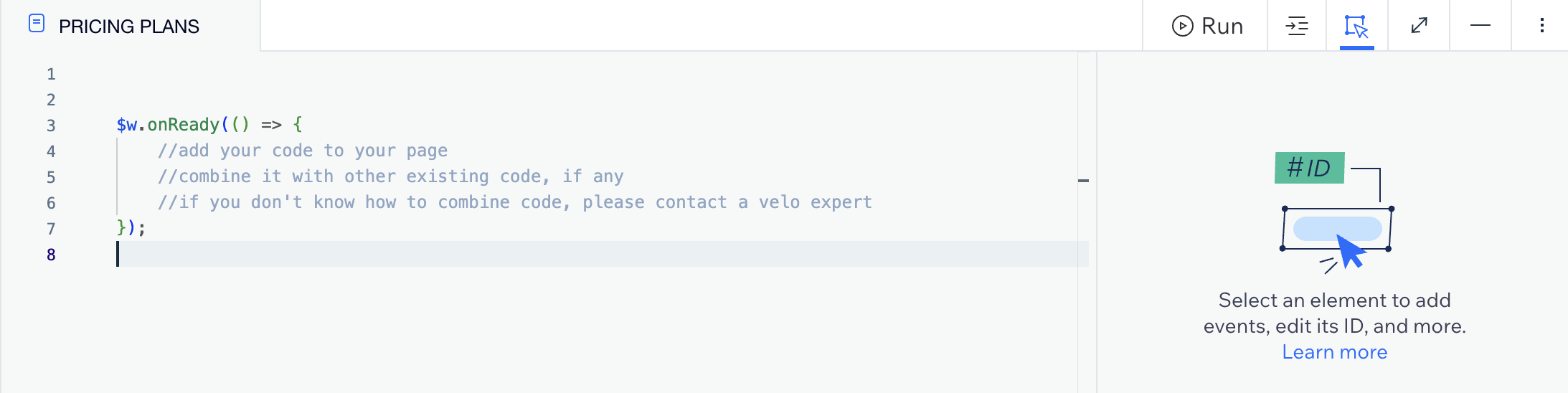
Below you will find the code for this tutorial. Simply add this code to the main Wix Pricing Plans app page that handles the checkout process. The code runs automatically when the page loads and checks the current member's subscription status. Be sure to update the redirect URL with your actual page that you choose from your website.
import { orders } from "wix-pricing-plans-frontend";
import wixLocation from "wix-location";

$w.onReady(() => {
    checkActiveOrdersFirst();
});

function checkActiveOrdersFirst() {
    const activeFilters = {
        orderStatuses: ['ACTIVE']
    };

    orders
        .listCurrentMemberOrders(activeFilters)
        .then((activeOrdersList) => {
            if (activeOrdersList.length > 0) {
                console.log("An ACTIVE subscription was detected for this Member. Redirecting to account page.");
                wixLocation.to("/account/my-subscriptions");
            } else {
                console.log("No active subscriptions found. User can proceed with checkout.");
                // Allow normal checkout process to continue
            }
        })
        .catch((error) => {
            console.error("Error checking active plans:", error);
        });
}
This code:
- Runs when the checkout page loads
- Checks if the current member has any ACTIVE pricing plan orders
- If active plans exist → redirects to
/account/my-subscriptions - If no active plans → allows checkout to proceed normally
Good To Know #1
Expected
This code only affects logged-in members with existing subscriptions. New visitors and members without active plans will see your pricing options normally and can purchase as usual. The redirect happens smoothly before the page fully loads.
Good To Know #2
Compatibility
This solution works seamlessly with both Wix Classic Editor and Wix Studio sites. The code uses standard Wix APIs and integrates perfectly with your existing Pricing Plans setup. Test with different member accounts to see how smoothly it works across all scenarios.
Good To Know #3
Integration
If you have existing code on the main Wix Pricing Plan page, in the backend of your site or the Custom Code section of the Wix Dashboard settings then be sure to take that into consideration before applying this new code. If you are unsure on how to properly combine the full logic flow or the written code from any of these areas feel free to consult a Velo professional to ensure seamless.
Do you have questions? I have solutions!
Book a free consultation. No strings attached.