How to Fix iPhone NFC Text Not Working - Complete iOS NFC Text Solution

iPhone users often encounter an unexpected behavior when scanning NFC tags containing text messages - the phone simply doesn't display anything. This isn't a settings problem or hardware malfunction; it's a fundamental iOS limitation where iPhones cannot read NFC text records natively without a specialized app.

While Android devices automatically display NFC text content when scanned, iPhones require a different approach. The iOS system only supports certain NFC record types for automatic reading, and plain text isn't one of them. When iPhone users scan NFC tags that contain a text record, nothing will open up. It will seem as if the NFC is not compatible with iPhones or that the NFC does not work with iOS, but this is not necessarily accurate. To read an NFC text on an iPhone, you actually have to open up an NFC read/write app in order to scan the NFC tag and read it properly on an iPhone.
The Universal Solution
Instead of programming your NFC tag with text (which iPhones can't read), you can program it with a URL that displays your text beautifully when opened. This approach works perfectly on both iPhone and Android devices, creating a consistent experience for all users. When someone scans your NFC tag, their iPhone will automatically open the URL in their browser, displaying your text message in a clean, professional format. No apps required, no additional steps - it just works.
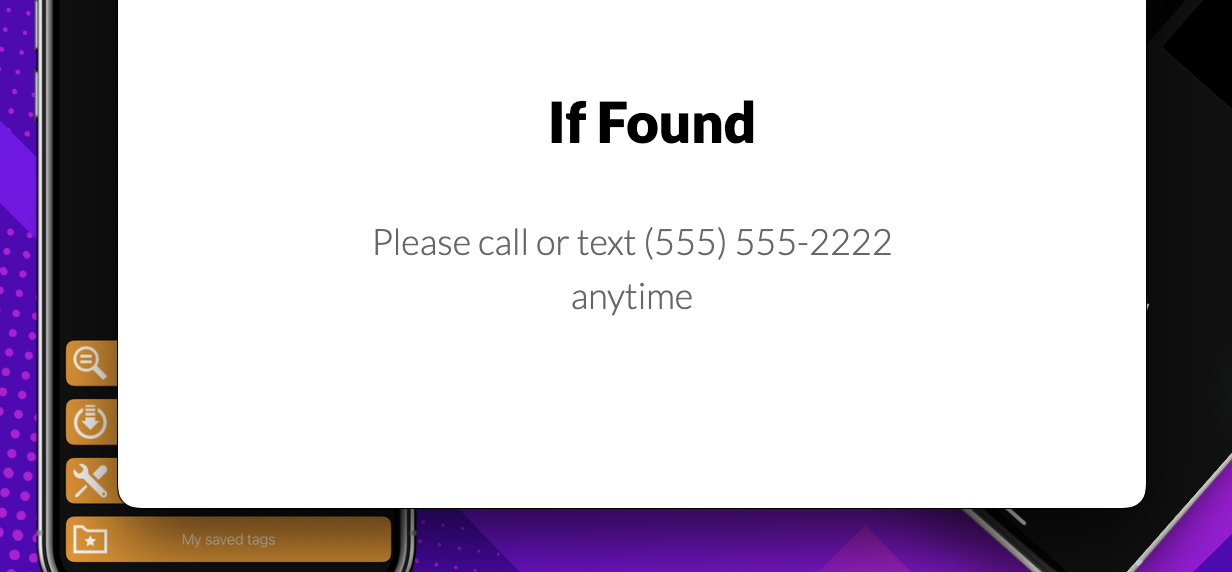
Create Your iPhone-Compatible NFC Tag
Use tool below to convert your text message into an iPhone-friendly URL. Afterwards, complete the tutorial that follows down below to learn how to add your iOS-friendly text message URL
Add your compatible URL into your NFC app
Now that you have created an iPhone friendly URL that contains your custom Text Message that you want to add to your NFC tag, you can open up your favorite NFC app to program the URL onto your NFC tag. We have included steps on how to do this with the most popular NFC Tools App. First install the app for Android or iPhone before you follow the tutorial steps below.
Install NFC Tools for AndroidInstall NFC Tools for iPhone
Open your NFC Tools app
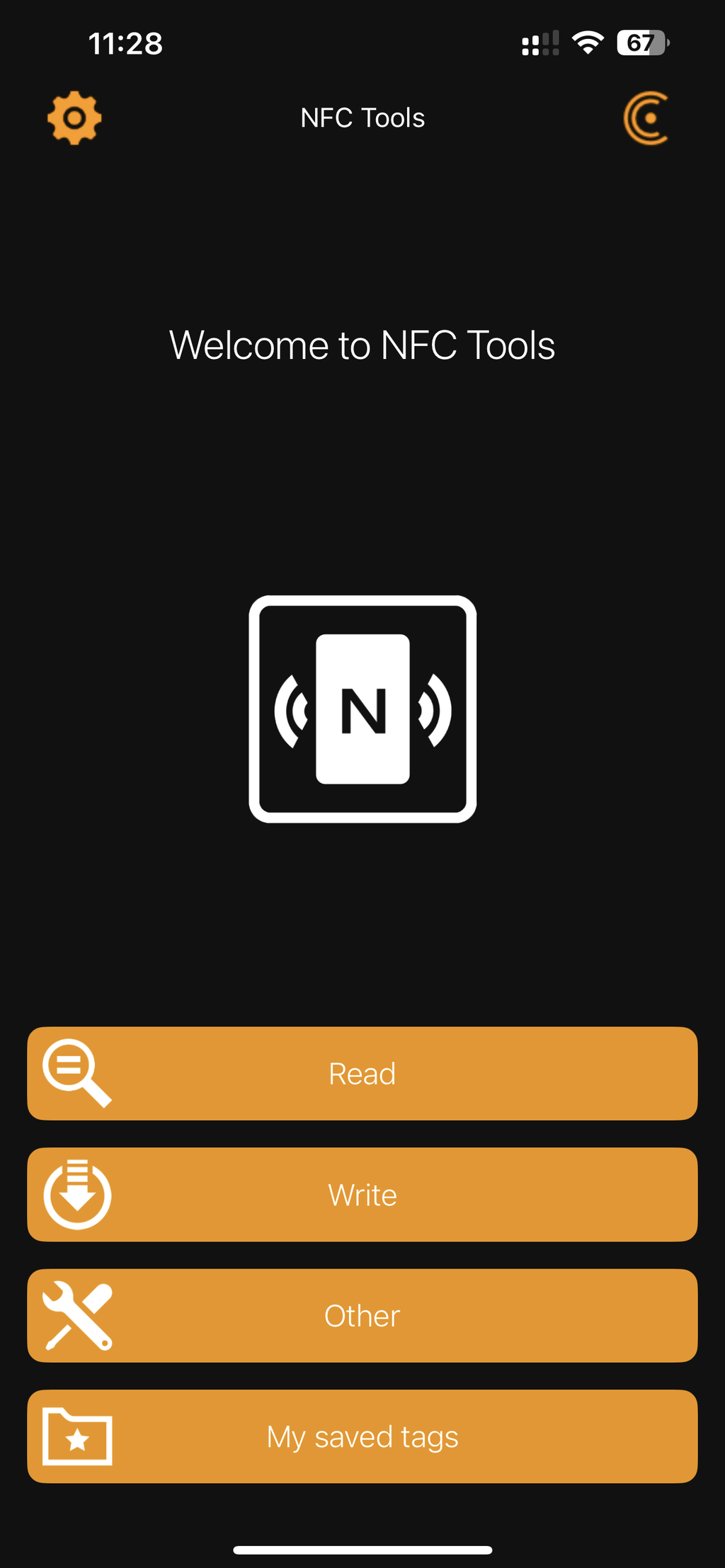
Click on WRITE.
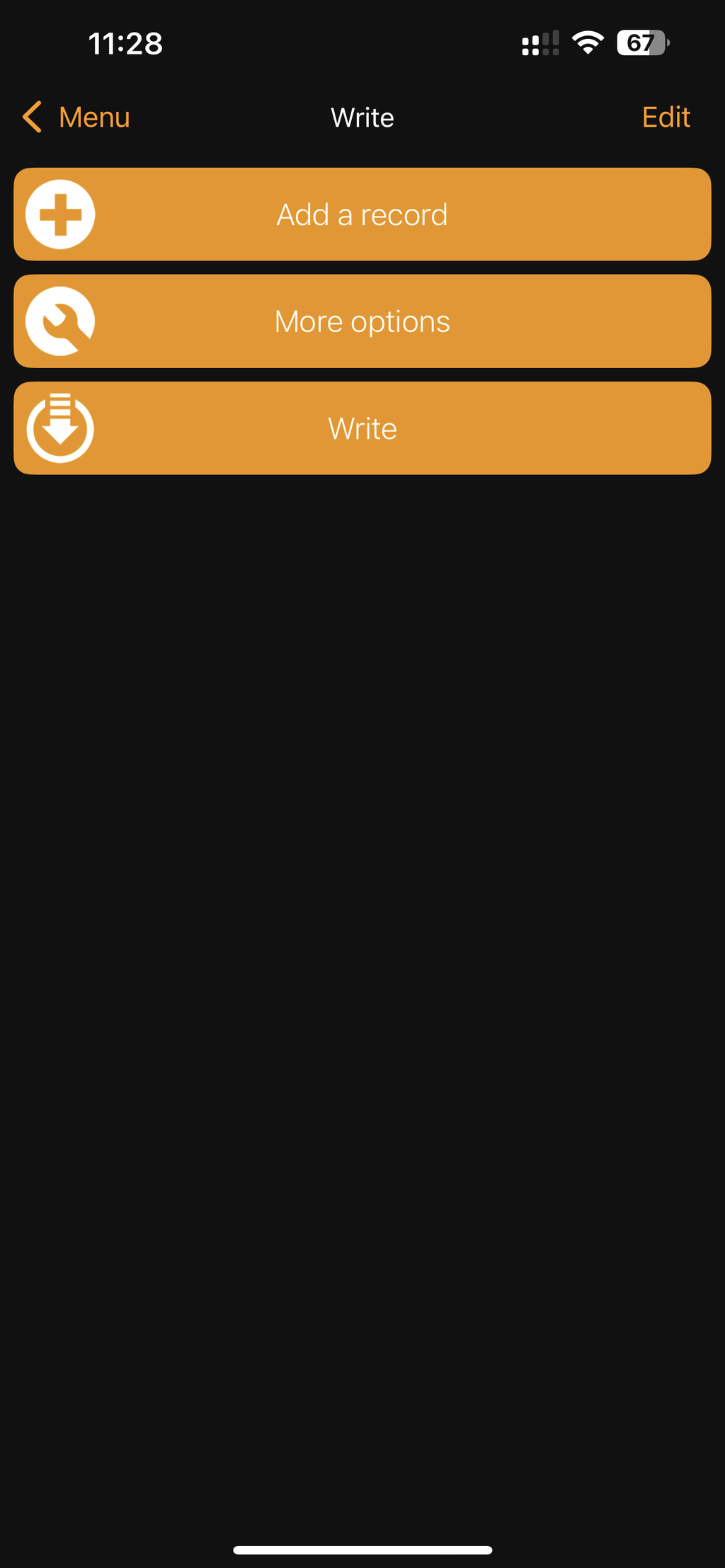
Click on ADD A RECORD.
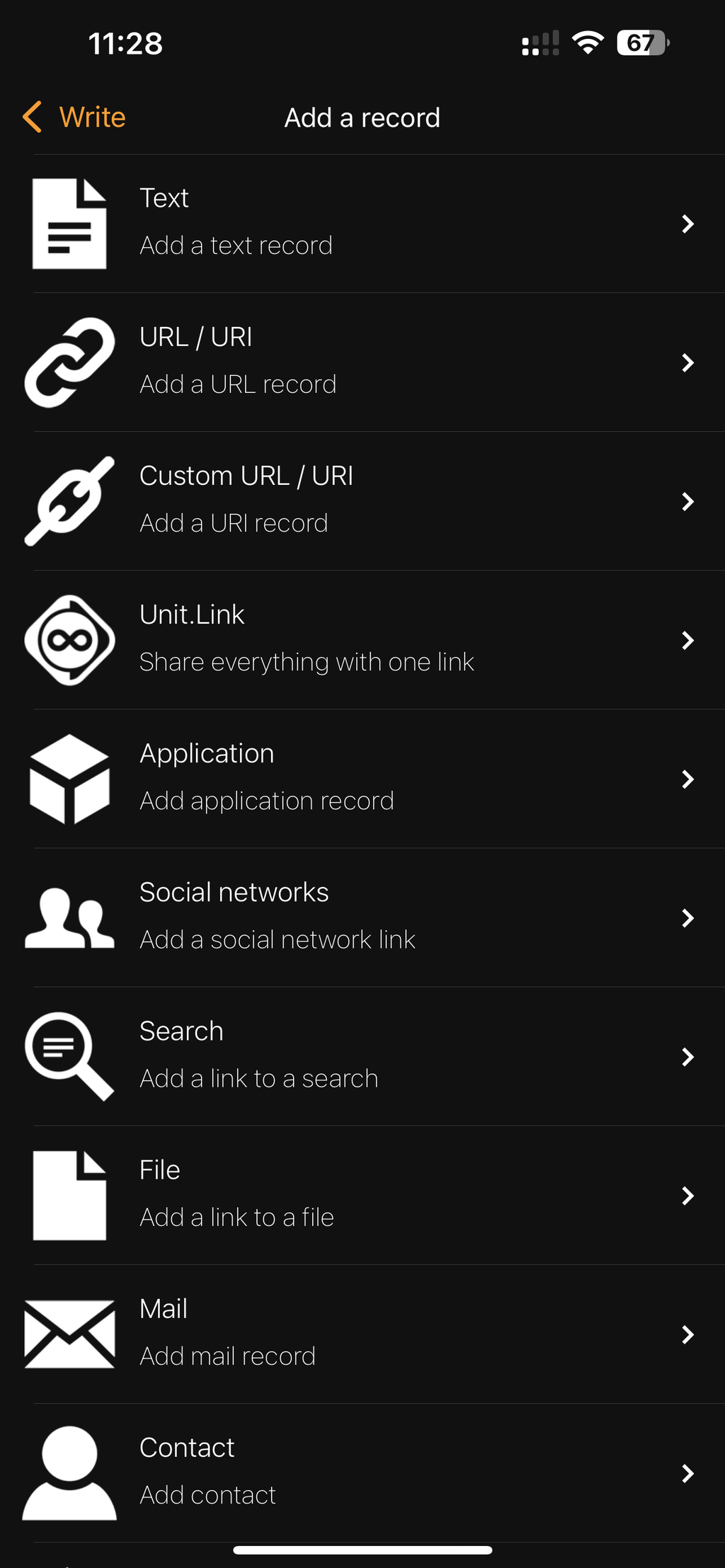
Click on URL/URI.
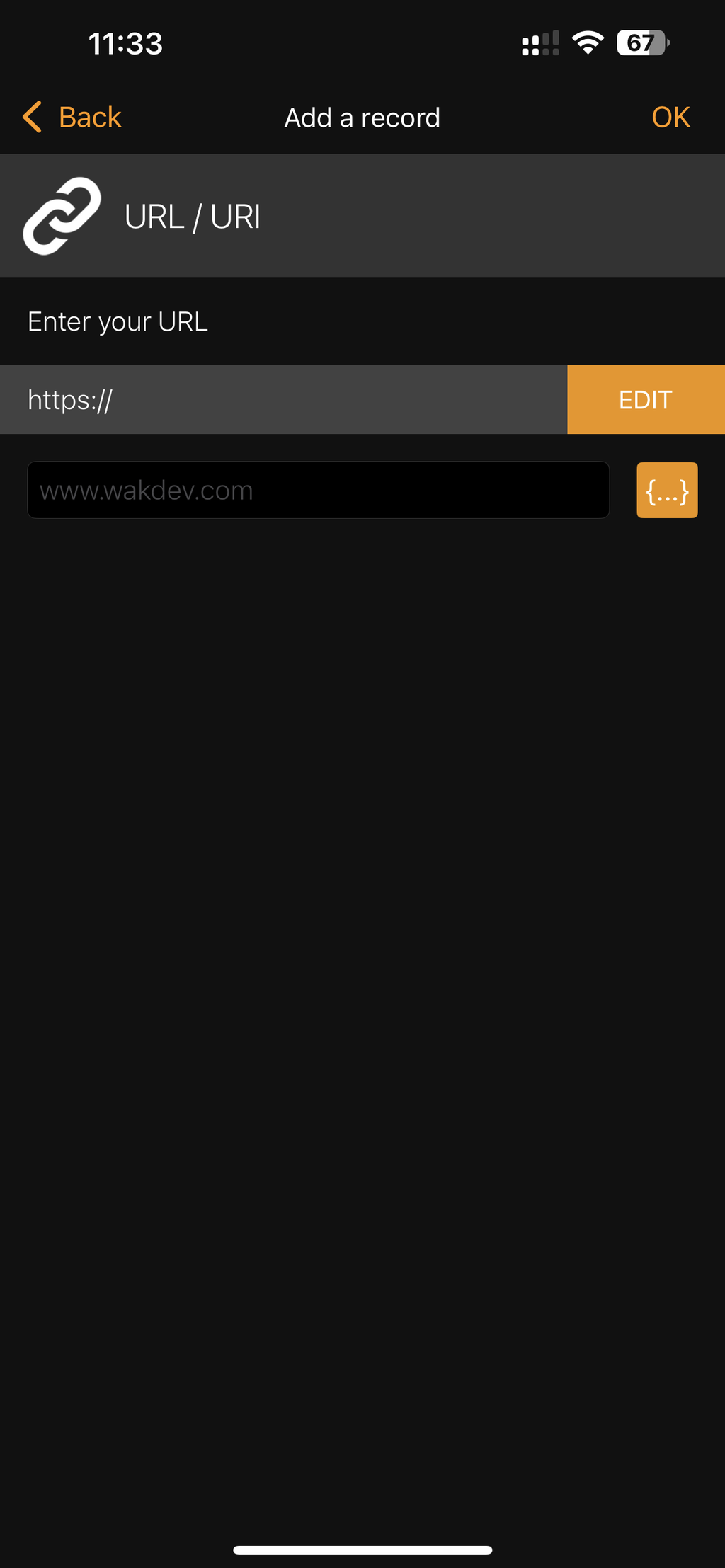
Paste iPhone compatible URL.
Is the URL too long? Shorten it!
You don't have to compromise the Text Message and to shorten the URL. Instead, you can use any Link Shortner to make your iPhone compatible URL shorter!
That means you can make this long URL: https://codequeen.us/read-my-nfc#text=You%2520can%2520use%2520this%
2520generator%2520to%2520make%2520it%2520work%2520so%2520that%2520you%2520can%2
520type%2520whatever%2520you%2520want%21&title=How%2520to%2520fix%2520iphone%2520nfc%2520text
Turn into something shorter like this URL: https://app.codequeen.co/short-iphone-nfc-text-test
The following Link Shorteners are highly recommended and have high reviews. Click on any image below to learn more about their Free Plans:
The free plan allows for unlimited short links with unlimited views.

The free plan allows 50 short links with unlimited views.
The free plan allows 5 short links and 1,000 views.
The free plan allows 5 short links and 100 views.
Do you have questions? I have solutions!
Book a free consultation. No strings attached.