How to Create vCard Contact Files for iPhone NFC Tags - Complete iOS vCard Solution
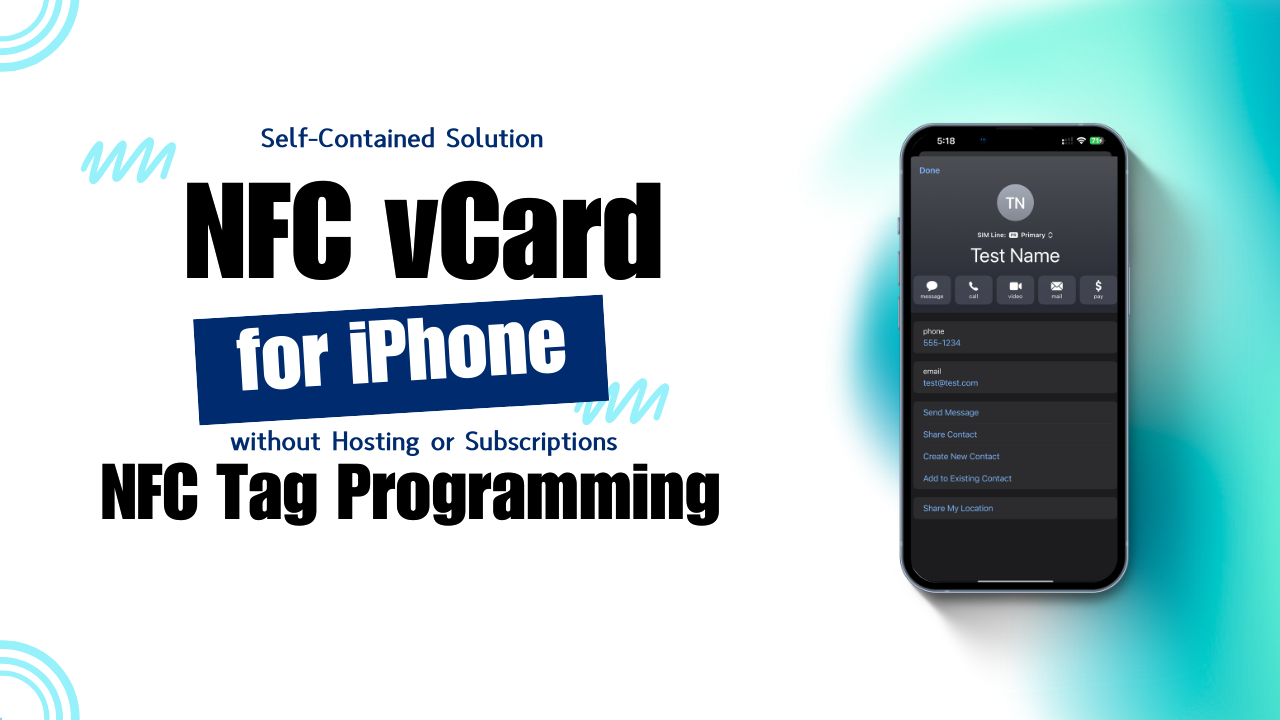
iPhone users often encounter a frustrating limitation when trying to share contact information via NFC tags - the phone simply doesn't handle vCard contact files natively through NFC. This isn't a settings issue or hardware malfunction; it's a fundamental iOS restriction where iPhones cannot process vCard data directly from NFC tags without specialized workarounds.
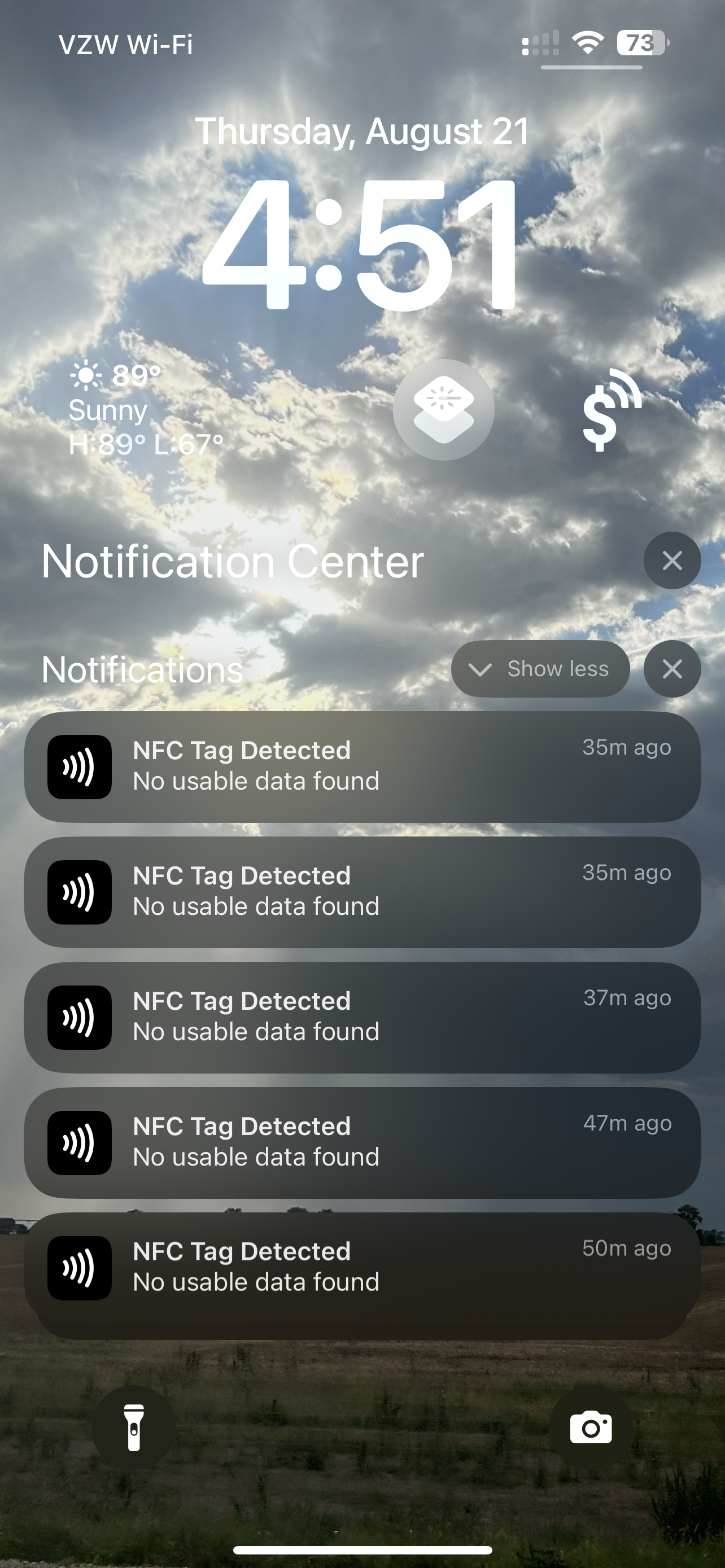
While Android devices automatically process vCard contact information when scanned from NFC tags, iPhones require a different approach. The iOS system has limited NFC record type support for automatic reading, and vCard files aren't included in that compatibility list. When iPhone users scan NFC tags containing vCard data, nothing happens - it will appear as if the NFC tag isn't working with iPhones, but this is simply an iOS limitation.
The Universal Solution
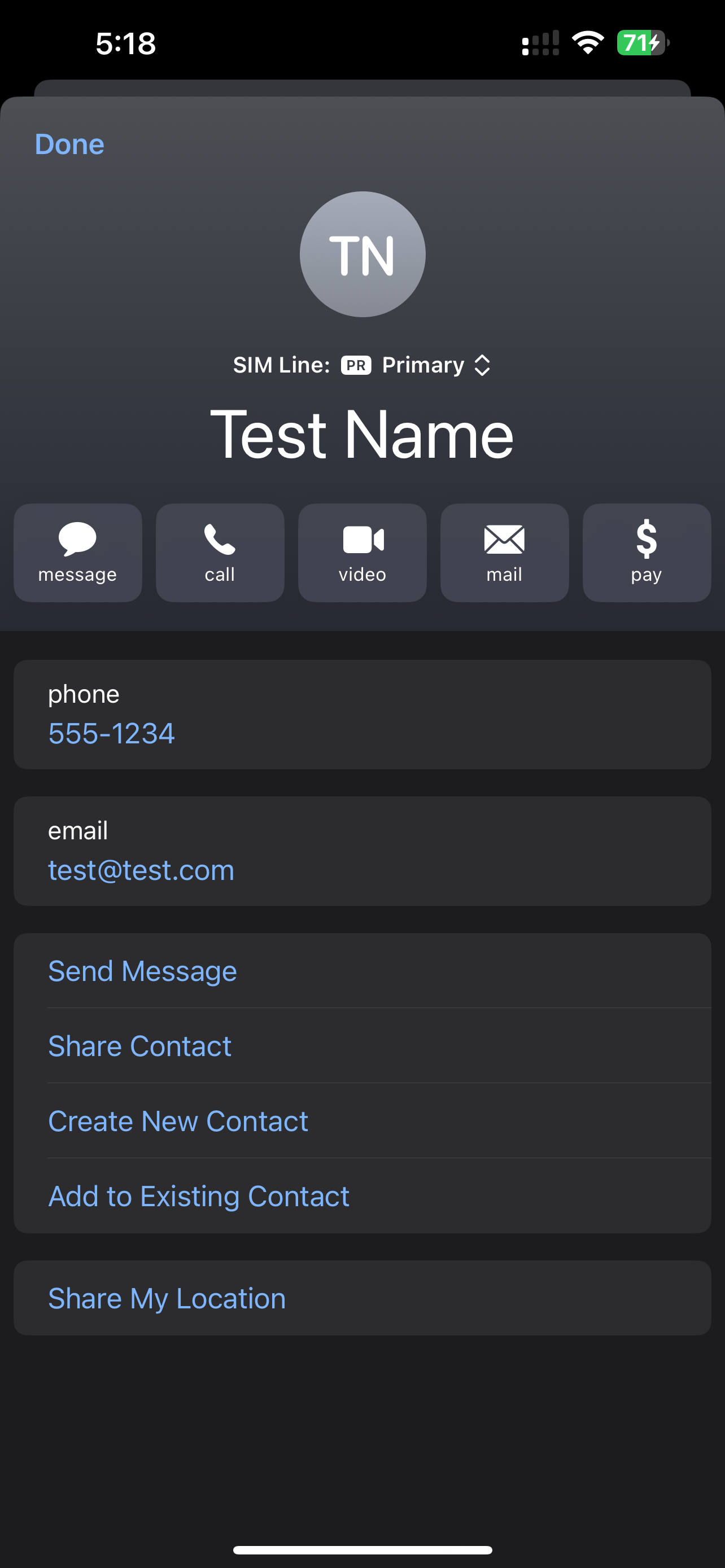
Instead of programming your NFC tag with vCard data (which iPhones can't read), you can create a URL that redirects to your contact information in a format that works perfectly on both iPhone and Android devices, creating a consistent experience for all users. When someone scans your NFC tag, their iPhone will automatically open the URL and redirect to display your contact information with an option to save it directly to their contacts.
This approach works flawlessly because it uses standard web URLs that all NFC writing apps support, while still delivering your complete contact information in a professional format that requires no internet connection once loaded.
iPhone Compatible vCard Generator for NFC Tag Programming
Use this free generator specifically for programming NFC tags that will work with iPhones and all NFC-enabled devices. (If you need a compatible URL link to be used online for websites, buttons, emails, etc, please view our other free generator down below!)
Testing your vCard Solution before Programming
Before programming your NFC tag, you can easily test either generated URL by copying it and pasting it directly into any web browser's address bar. When you press enter, the browser will process the URL and display your contact information - exactly as it will work when someone scans your NFC tag with their iPhone.
Add your compatible URL into your NFC app
Now that you have created an iPhone friendly URL that contains your custom vCard details for your NFC tag, you can open up your favorite NFC app to start programming your NFC tag. We have included steps on how to do this with the most popular NFC Tools App. First install the app for Android or iPhone before you follow the tutorial steps below.
Install NFC Tools for AndroidInstall NFC Tools for iPhone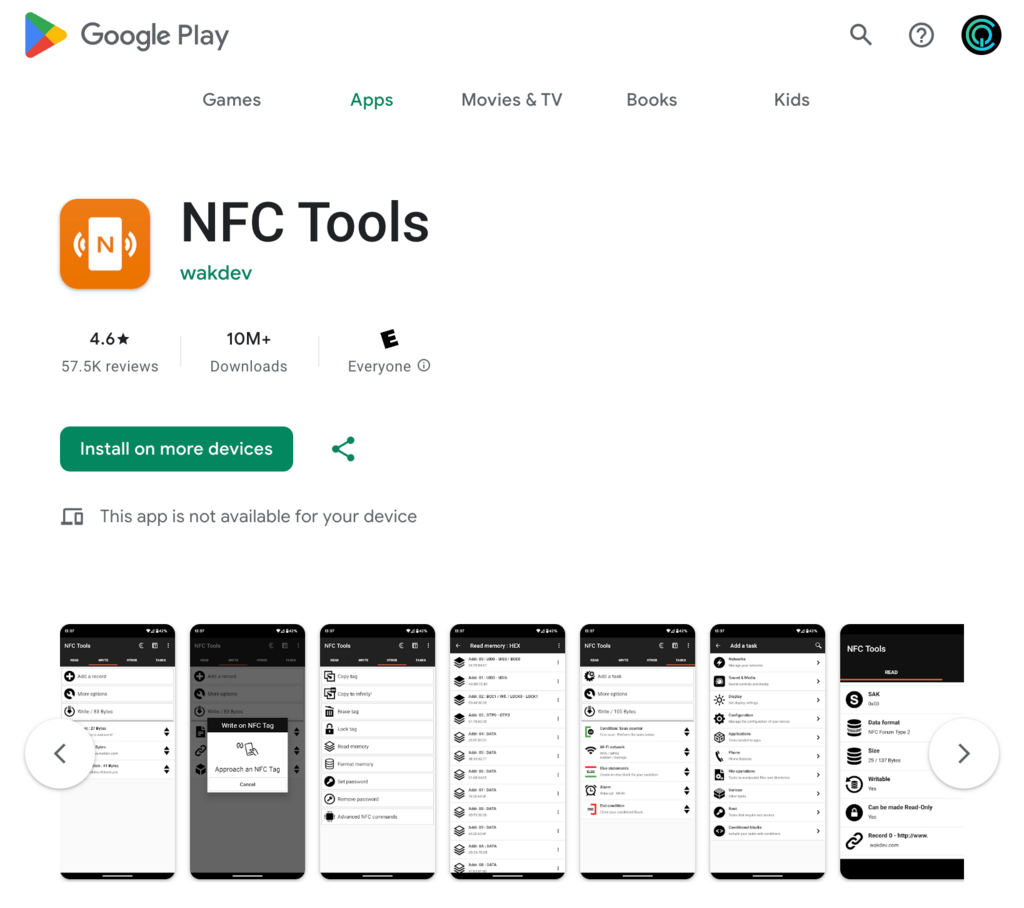
For Android
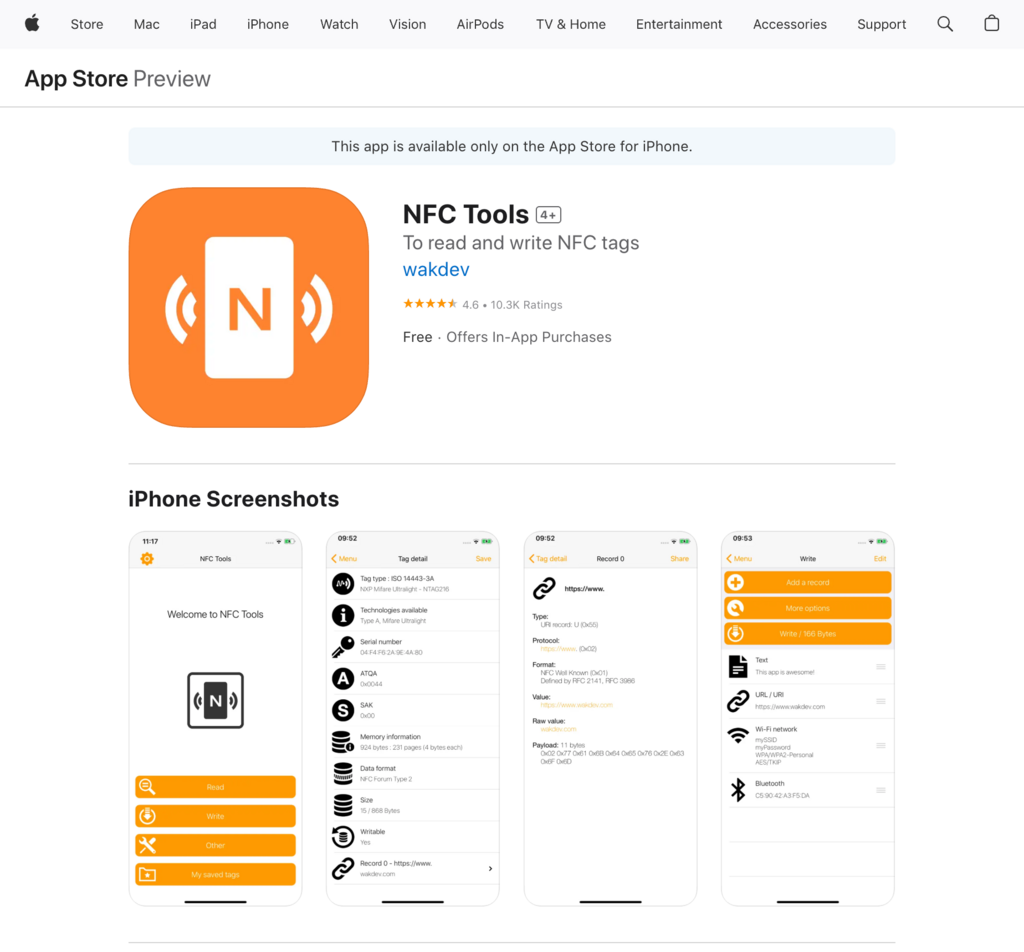
For iOS
Open your NFC Tools app
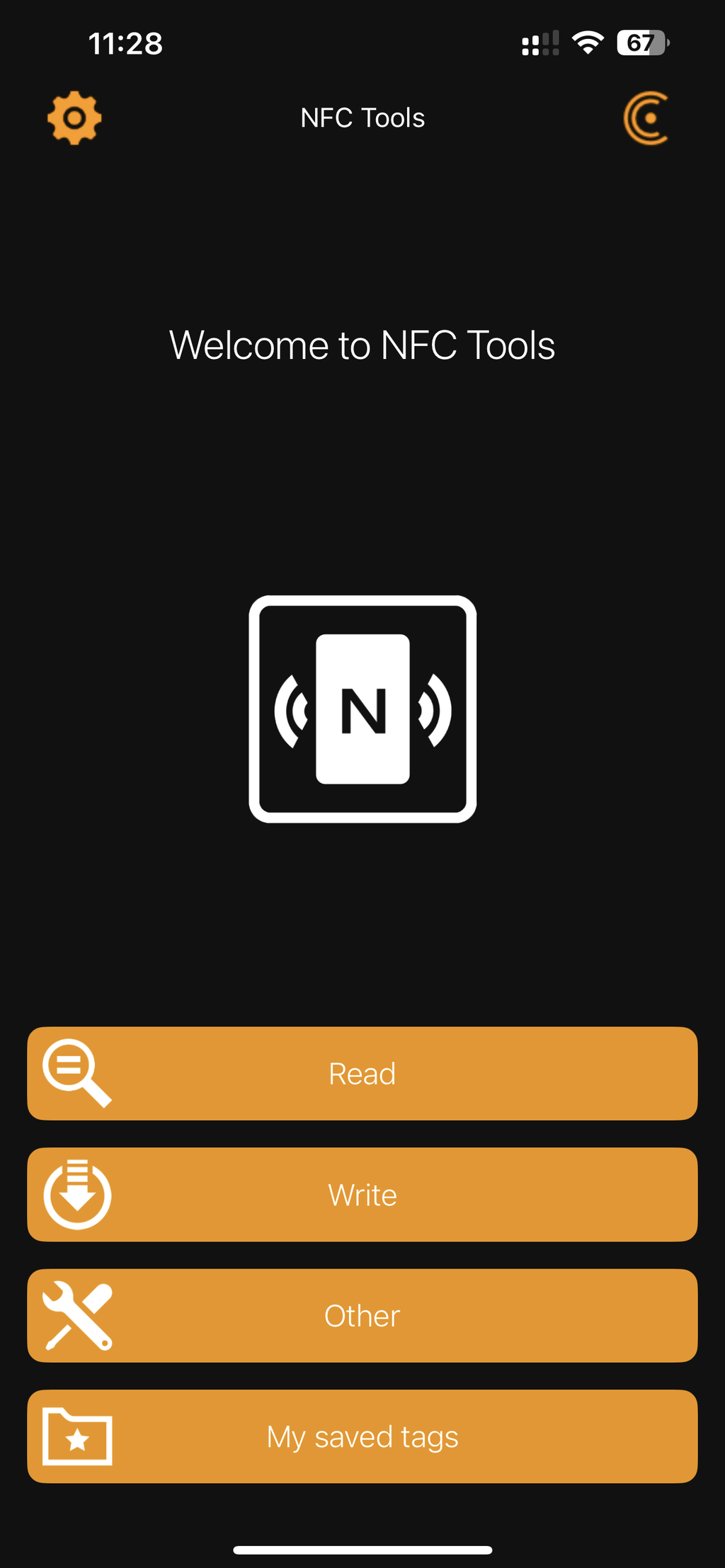
Click on WRITE.
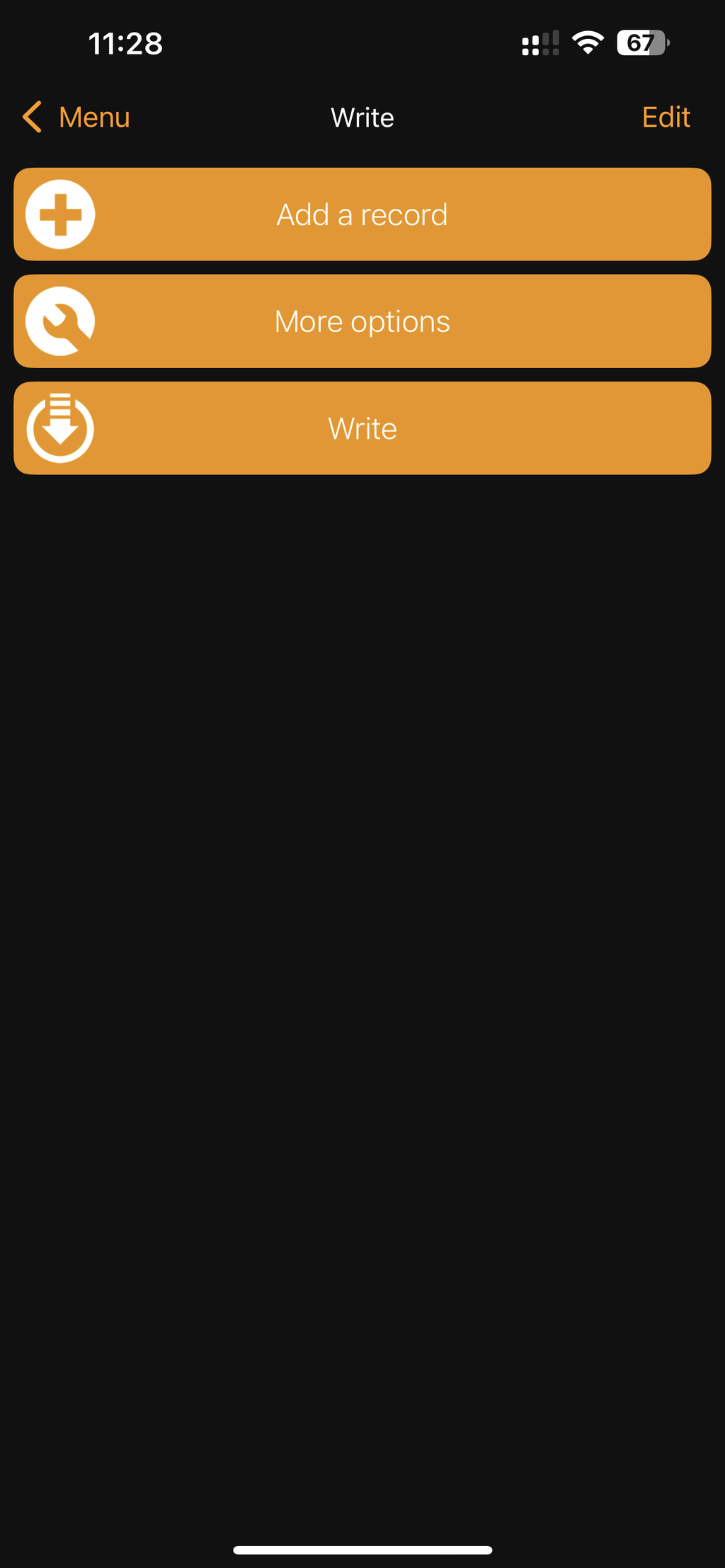
Click on ADD A RECORD.
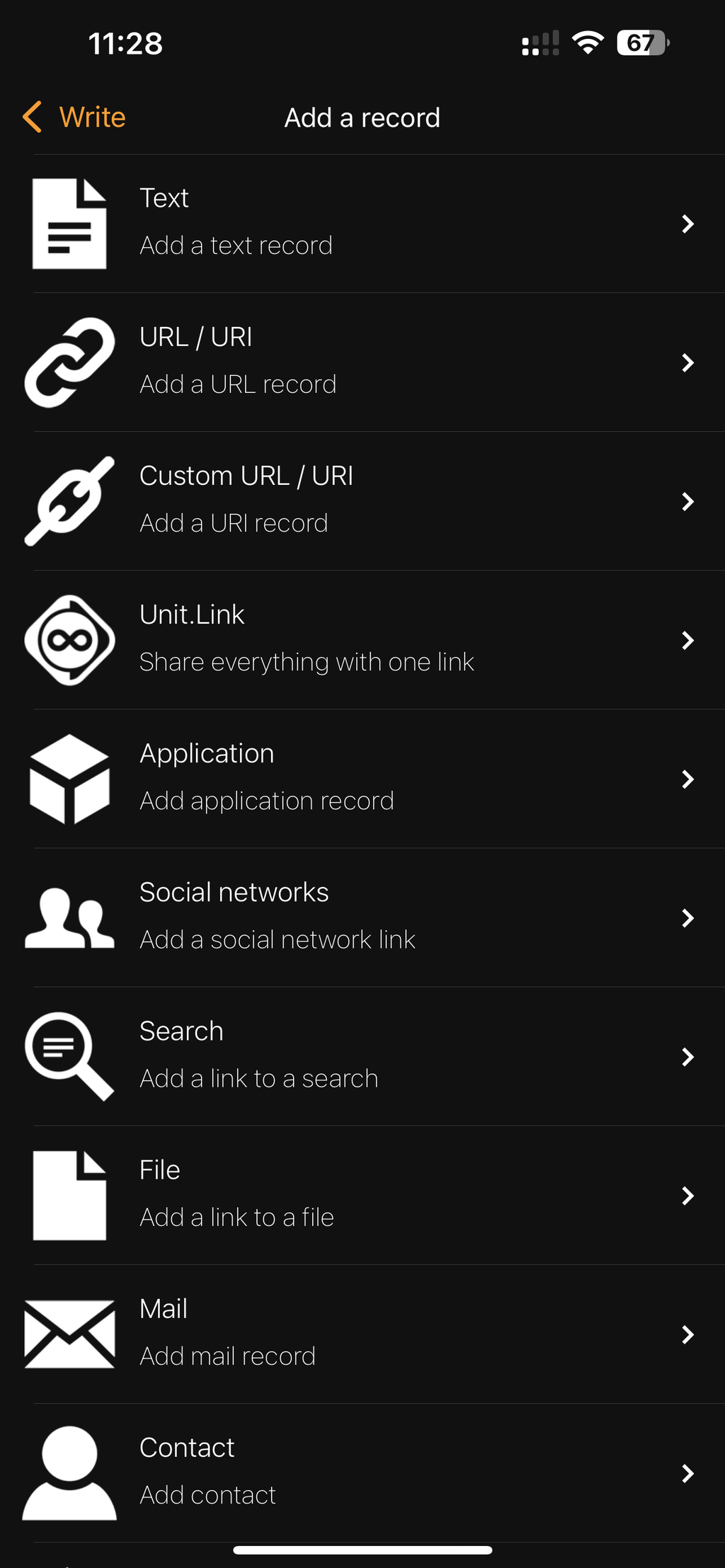
Click on URL/URI.
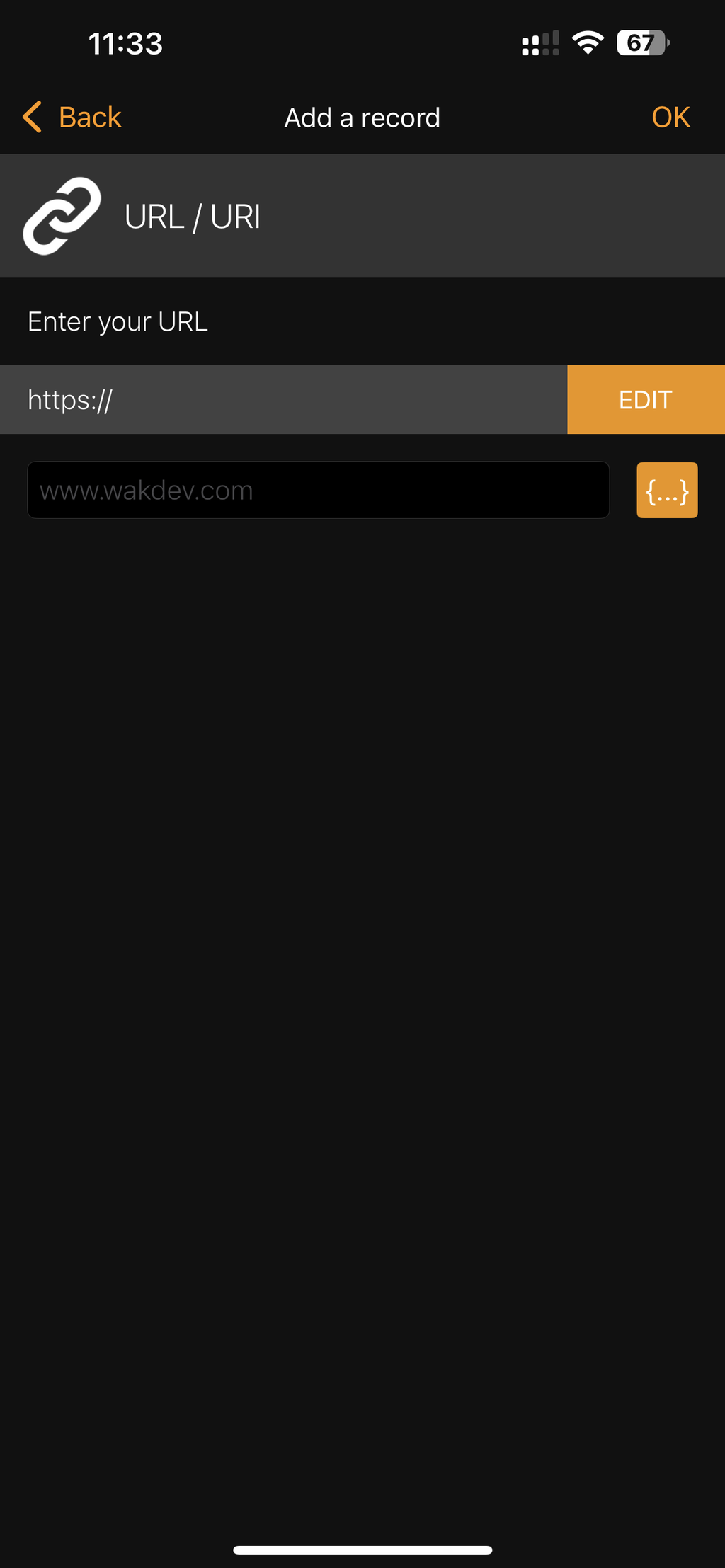
Paste iPhone compatible URL.
When someone taps your programmed NFC tag with an iPhone, iOS will automatically open the URL and redirect to display your contact information with an option to save it directly to their contacts. No additional apps or complicated setup required - it works immediately with the built-in iOS browser.
Is the URL too long? Shorten it!
You don't have to compromise the vCard information just to keep the URL short. Instead, you can use any Link Shortner to make your iPhone compatible URL shorter!
That means you can make this long URL: data:text/vcard;charset=utf-8,BEGIN%3AVCARD%0AVERSION%3A3.0%0AFN%3ATest%20Name%0ATEL%3A555-1234%0AEMAIL%3Atest%40test.com%0AEND%3AVCARD
Turn into something shorter like this URL: https://app.codequeen.co/test-vcard-iphone
Our recommendations
The following Link Shorteners are highly recommended and have high reviews. Click on any image below to learn more about their Free Plans:
The free plan allows for unlimited short links with unlimited views.
The free plan allows 50 short links with unlimited views.
The free plan allows 5 short links and 1,000 views.
The free plan allows 5 short links and 100 views.
Self-Contained vCard Data URI Generator
For situations where you want to share contact information through websites, buttons, or direct links (not NFC tags), we also provide a self-contained data URI solution.
So where does this data "Live"
Nowhere and everywhere! The data URI is completely self-contained, so that means:
- Not on a server - no hosting needed
- Note in a database - no storage required
- Lives entirely within the URL itself
- Works offline - no internet connection needed
- Portable - copy and paste anywhere
Think of a data URI like it is a digital business card - instead of pointing to a file somewhere else, you're literally writing the entire contact information into the URL itself. It's like the difference between saying "Go to this address and get my business card" versus "Here's my complete business card, right here in this string."
💡 Important compatibility note: Data URIs work perfectly when pasted directly into iPhone mobile browsers, Safari on desktop, and all other browsers. They are fully compatible with mobile and desktop devices when accessed through web browsers. However, they are sadly not compatible with physical NFC tag programming - iPhones cannot read or detect data URIs when they come from NFC tags. If you attempt to program the direct data URI into an NFC tag, you will receive a "no usable data detected" error when scanning with an iPhone. This is why we provide the iPhone-friendly URL generator specifically for NFC tag programming, which saves the contact information as a standard web URL that redirects to the data URI format.
Do you have questions? I have solutions!
Book a free consultation. No strings attached.